AI Chat
Ask questions about your finances in natural language. Get spending analysis, budget advice, and personalized saving tips — powered by AI.
Overview
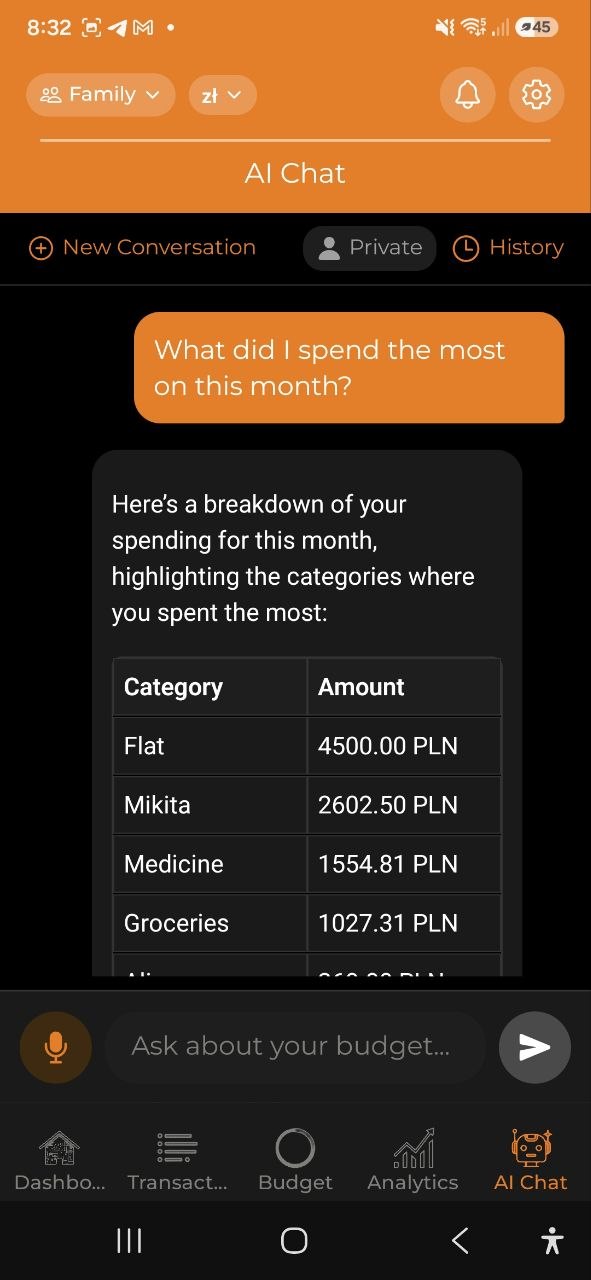
The AI Chat tab is your personal financial assistant. You can ask questions in plain language and get detailed answers based on your actual spending data.
How to Use
- Tap the AI Chat tab (the rightmost tab in the bottom navigation)
- Type a question in the text field at the bottom (placeholder: “Ask about your budget…”)
- Tap the send button (arrow icon)
- Read the AI response in the chat bubble
The AI assistant responds with analysis based on your real transaction data for the current account.
Quick Action Buttons
Three preset buttons appear for common questions:
| Button | Question sent |
|---|---|
| Top expenses | “What did I spend the most on this month?” |
| Budget status | “Am I on track with my budget?” |
| Saving tips | “Give me tips to save money” |
Tap any button to instantly send that question.
Voice Input in Chat
- Tap the microphone button (left of the text input)
- Speak your question
- The transcribed text is processed and sent
Note: Voice processing status shows as “Processing voice…” while being transcribed.
Example Questions
Analysis Questions: - “What did I spend the most on this month?” - “How much did I spend on food last week?” - “Am I on track with my budget?” - “Compare my spending this month vs last month” - “What are my top 3 expense categories?” - “How much did I spend on transport this year?” - “Give me tips to save money” - “When will my monthly budget run out at this rate?”
Natural Language Commands: - “Add expense 500₴ for groceries” - “Create budget 10000₴ for entertainment for March” - “Add income 50000₴ from salary” - “Show my expenses last week” - “What’s my budget status?” - “Show category breakdown for this month”
Asking About a Specific Product
You can ask how much you’ve spent on a particular product, brand, or shop:
- “How much did I spend on beer?”
- “How much on coffee this year?”
The assistant searches inside your scanned receipts, not just the expense name — so a product bought as part of a big grocery run is still counted, and only that item’s price is added up (not the whole receipt). It understands any language, brand names, and typos — for example “пиво”, “beer”, or “cerveza” all find the same beer purchases. If you don’t mention a time period, it searches your whole history.
Asking About Bottle Deposits
Shops in many countries charge a separate, refundable deposit on returnable bottles, cans and crates. You can ask the assistant how much of it you have paid:
- “How much have I paid in deposits?”
- “How much kaucja this month?”
The assistant answers with the total, how many receipts it came from, and the shops where you paid the most. Ask in your own words — the local term works in every language the app supports (kaucja, Pfand, statiegeld, consigne, depósito, bottle deposit). If you do not mention a time period, it covers your whole history.
The figure comes from the deposit line printed on your scanned receipts, so it also counts receipts the app could not split into categories. It is the amount you have already paid, not a refund you can still collect — the app does not track which packaging you have taken back. Manually typed expenses carry no deposit, and on a fully encrypted account the assistant cannot read the amounts at all.
Asking About Discounts
You can ask the assistant how much you have been given in discounts on your purchases:
- “How much did I save in discounts this month?”
- “How much rabat this year?”
The assistant answers with the total, how many receipts it came from, and the shops that gave you the biggest discounts. Ask in your own words — the local term works in every language the app supports (rabat, Rabatt, korting, réduction, descuento, discount). If you do not mention a time period, it covers your whole history.
The figure comes from the discount printed on your scanned receipts, so it also counts receipts the app could not split into categories. Manually typed expenses and bank/Wise imports carry no discount figure, and on a fully encrypted account the assistant cannot read the amounts at all.
Conversation History
You can browse and reopen previous AI conversations at any time:
- Tap the History (clock icon) button at the top of the chat tab
- A list of past conversations appears, showing the title and date
- Tap any conversation to load its messages
- You can continue the conversation by typing a new message
- To start fresh, tap the New Conversation button (top-left, visible when a past conversation is loaded)
Loaded conversation history is also saved locally for offline access after the first load.
Managing a Conversation
Each conversation in the list has its own ⋯ menu. In the browser it appears when you point at a row (or when the row is the one you have open); on the phone it is always visible, and a long press on the row opens the same menu.
- Rename gives the conversation a name of your own. Until you do, it is titled by the first thing you typed into it, which is rarely what you would have called it. Renaming does not move the conversation in the list.
- Pin keeps a conversation at the top of the list, above a dividing line, no matter how long ago you last used it. Pinning is yours alone — it changes the order you see and nobody else’s, and you can pin a shared conversation somebody else started. Tap Unpin to release it.
- Delete removes the conversation and its messages for good. There is no undo. If the conversation is shared, the confirmation says so plainly, because deleting it removes it for every member of the account, not just for you.
You can rename and delete only the conversations you started. On someone else’s shared conversation the menu offers Pin alone — which is the one thing that makes sense there, since the order of your own list is your business.
Shared Conversations
If you share an account with other members, you can turn a conversation into a shared group chat where everyone talks with the AI together.
- Turn sharing on or off: the person who started a conversation sees the choice at the top of the chat. In the browser it is a pair of buttons, Private and Shared, with the current one filled in — so you can see that the other one exists and tap it. On the phone the same pill carries a small swap arrow to show it can be switched. Any member can share a conversation they created — not just the account owner. You can’t change sharing on a conversation someone else started (you’ll see a read-only “Shared” label there). The choice only appears when the account has more than one member.
- Deciding before you start: the choice works on an empty conversation too. Pick Shared before typing anything and the conversation is shared from its first message, which saves everyone reading the first half of a thread they were never told about.
- Everyone sees the conversation: in a shared conversation, messages from other members appear with their name, and new messages show up automatically while you have the chat open.
- Address a person instead of the AI: type @ and pick a member to mention them. When you mention a member, the AI stays silent — the message is meant for that person, not the assistant. If you don’t mention anyone, the AI answers as usual.
- Notifications: if you mention a member who isn’t currently viewing the chat, they receive a push notification so they don’t miss it. This respects your “Shared activity” notification setting.
Private conversations work exactly as before — only you can see them, and the AI always answers.
Chat Features
- Conversation history — previous messages are preserved during your session and can be reopened via the History button
- Typing indicator — shows “Thinking…” while the AI processes your question
- Error handling — if something goes wrong, you’ll see an error message with a retry option
- Natural Language Commands — create expenses, income, budgets, categories, and query data using plain language
- Action Confirmation — when creating financial records, AI shows a preview and asks for confirmation before saving
- Smart Language Detection — AI automatically responds in your language (English, Russian, Ukrainian, Belarusian, German, Spanish, French, Polish)
- Currency Recognition — supports symbols: ₴ (UAH), $ (USD), € (EUR), zł (PLN), £ (GBP), ₽ (RUB)
- Telegram Bot — use the same AI Chat from Telegram. Send text, voice, or receipt photos directly to the bot
- Automatic Account Detection — mention an account name in your message (e.g., “Show expenses in Family”) and AI will query that account automatically
AI Request Limits
Each message you send uses one AI request from your monthly allowance:
| Plan | AI Requests per Month |
|---|---|
| Free | 5 |
| Pro | 200 |
| Business | Unlimited |
When you run out of requests, you’ll be prompted to upgrade your plan.
Natural Language Commands
You can now execute real actions directly from the chat:
Creating Records
- Type a command like: “Add expense 500₴ for groceries”
- AI shows a confirmation card with: - Amount and currency - Category (auto-detected or default) - Date (today by default)
- Tap Confirm to create the expense, or Cancel to reject
- After confirmation, the expense is saved and you’ll see a success message
Supported create commands: - Expenses: “Add expense 500₴ for groceries”, “Spent 1200₴ on transport yesterday” - Income: “Add income 50000₴ from salary”, “Received 5000₴ bonus” - Budgets: “Create budget 10000₴ for entertainment for March”, “Set monthly budget 3000₴ for food” - Categories: “Create expense category Food”, “Add income category Freelance”
Debt & Loan Commands
Manage your debts directly from chat — no need to open the Debts screen:
- “Sarah repaid me $80” → records a partial repayment for Sarah’s debt (shows confirmation first)
- “I lent John $200 until Friday” → creates a new lent-money entry
- “Borrowed 5000₴ from mom” → creates a new borrowed-money entry
- “Show my debts” → instantly lists all active debts with remaining balances
If you have multiple debts with the same contact name, the AI will ask which one you mean.
Savings Goal Commands
Update your savings goal progress without leaving the chat:
- “I saved $200 for my vacation fund” → updates the current balance of your Vacation goal
- “Add 500₴ to my car goal” → increments the Car goal balance
- “Set my emergency fund to $3000” → sets the current amount directly
The AI matches goal names from your active goals list. Confirm the action in the preview card before it’s saved.
Querying Data
These commands execute immediately and show results:
- “Show my expenses last week” → displays expense list with total
- “What’s my budget status?” → shows all budgets with progress bars
- “Show category breakdown for this month” → displays spending by category with percentages
- “Show my debts” → lists all active debts with amounts owed
Want to double-check a number? Tap any expense listed in the AI’s answer (including the recent receipts under a deposit or discount total) to open its full detail screen, receipt included.
Undoing the Last Action
Made a mistake right after confirming something — wrong amount, wrong category, or you just changed your mind? Say “undo”, “undo that”, or “cancel that” in the same conversation.
- Type “undo” (or “cancel that”, “delete the last one” — any phrasing works, in any language)
- AI shows a confirmation card describing what it’s about to undo
- Tap Confirm to revert it, or Cancel to leave it as is
Undo only reaches back to the single most recent action you confirmed in that conversation, and only within about 15 minutes of confirming it — it won’t reach back through several turns to something you may have already built on top of. It works for a just-created expense, income, or debt entry, a debt repayment, and a savings goal balance update. If you’ve already edited that entry since creating it, or too much time has passed, the assistant will say so and point you to editing it manually instead.
FAQ
-
Q: Does the AI have access to all my financial data? A: The AI can access your expenses, income, budgets, and categories for the currently selected account. It does not access other accounts or personal data beyond financial transactions.
-
Q: Can I use AI Chat offline? A: No, AI Chat requires an internet connection to process your questions.
-
Q: The AI gave an incorrect answer. What should I do? A: AI responses are based on your data but may occasionally be inaccurate. You can rephrase your question for better results, tap any listed expense to check it against its own detail screen and receipt, or verify the data in the Analytics tab.
-
Q: Can I undo a confirmed action? A: Yes — say “undo” or “cancel that” in the same conversation, right after confirming. This reverts the single most recent action you confirmed, within about 15 minutes of confirming it. See Undoing the Last Action above. Past that window, or for anything older, delete it manually from the Expenses tab.
-
Q: What happens if I reject an action? A: If you tap “Cancel” on a confirmation card, the action is rejected and nothing is saved. The AI will acknowledge the rejection.
-
Q: Can I use AI Chat from Telegram? A: Yes! Link your Telegram via Settings and chat with the AI bot directly. All features work the same — text, voice, commands, and receipt scanning. See Telegram Bot for details.
-
Q: How does AI know which account I’m asking about? A: If you mention an account name in your message (e.g., “expenses in Family”), the AI automatically queries that account. Otherwise, it uses your current default account.
See also: Spending Story | Analytics