Analytics
Visualize your spending patterns with interactive charts. Filter by time period and currency, drill down into details, and get AI-powered insights to understand your finances better.
Overview
The Analytics tab provides a comprehensive view of your spending through charts, insights, and data exploration. All data is based on your expenses in the selected account.
Time Range & Filters
At the top of the Analytics screen:
- Time range toggle: Week | Month | Year
- Currency filter: All currencies, or select a specific one (USD, EUR, PLN, etc.)
The selected range affects all charts and insights below.
Summary Cards
- Total Spent — your total expenses for the selected period
- vs. last period — “more than last week/month/year” or “less than last week/month/year” with percentage
- vs. 3-month average — shown below the period comparison once you have at least 1 prior full month of data, e.g. “18% above 3-month avg” (green = below average, red = above average)
- Avg per Day — average daily spending
AI Insights Carousel
A horizontal scrollable carousel of AI-generated insights (Pro plan required):
- Spending Anomalies — unusual spending detected (e.g., “78% more than usual on Transport”)
- Budget Predictions — when your budget is projected to run out
- Savings Opportunities — suggestions for reducing spending
- Category Comparisons — how your spending compares across categories
- Trend Changes — significant shifts in spending patterns
Each insight card has severity: critical (red), warning (yellow), or info (blue).
Note: Free plan users see a prompt to upgrade: “Upgrade to Pro for AI insights.”
Charts
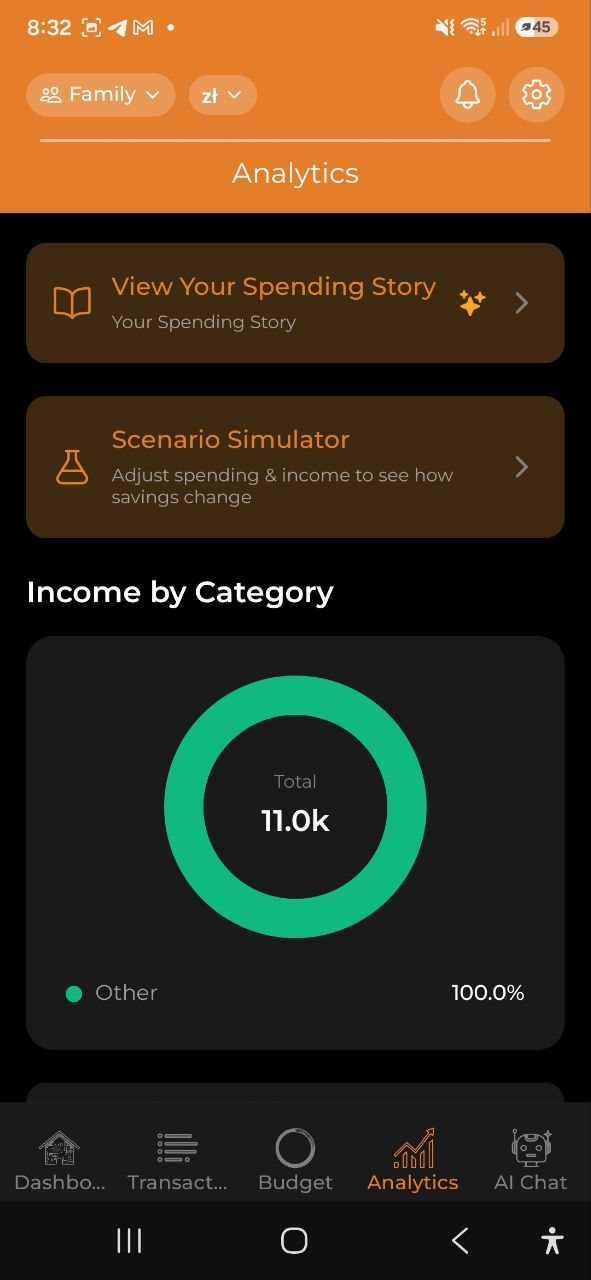
Income by Category (Donut Chart)
- Breaks down your income by category for the selected period
- Shows only when you have income entries with categories (e.g., Salary, Freelance, Dividends, Rental)
- Color-coded in a green/teal palette to distinguish from expense charts
- Uncategorized income is grouped as “Other”
- Appears above the spending trend chart
Spending Trend (Bar Chart)
- Shows daily or monthly spending over the selected period
- Interactive: tap any bar to drill down into that time segment
Spending by Category (Donut Chart)
- Category breakdown with percentages
- Color-coded by category
- Tap a slice to explore that category’s expenses
Budget vs Actual (Grouped Bar Chart)
- Side-by-side comparison of budget limits vs. actual spending
- Shows On Track or Over Budget per category
- Only appears if you have active budgets
Spending by Day of Week (Weekday Chart)
- Pattern analysis showing which days you spend the most
- Insight: “You spend the most on Saturdays”
By Merchants
- Top merchants where you spent money in the selected period
- Shows up to 8 individual merchants; the rest are grouped as “Other”
- Only appears when at least one expense has a merchant value
If the same shop appears under several names, open Settings → Merchants to tidy them up: tap Select, tick the variants, and Merge them into one name. The app also suggests likely groups (for example several Biedronka entries) that you can merge in a single tap — so they count as one merchant in these charts.
By Tags / By Projects
- Tag Breakdown — spending grouped by your custom tags
- Project Comparison — spending grouped by projects
- Helps track themed spending (e.g., all #coffee expenses or “Vacation” project costs)
Drill-Down
Tap any chart element to explore deeper:
- Year view — tap a month bar to zoom into that month
- Month view — tap a week to zoom into that week
- Week view — tap a day to see daily transactions
- Day view — see individual transactions
Use the Back button to navigate up through levels.
Quick Insights
Below the charts, you’ll find text-based quick insights:
- Top Category — your highest spending category this period
- Peak Spending Day — the day with the most spending
- Daily Budget Tip — recommended daily spending to stay on track
- Receipt Savings — total amount saved from discounts. Tap it to see which stores gave you the biggest discounts and the receipts they came from.
- Deposits Paid — total returnable-packaging deposit (“kaucja”/”Pfand”/”statiegeld”) paid on scanned receipts. Tap it for the same store/receipt breakdown. This is what you paid at checkout, not a refund — returned bottles and cans aren’t tracked.
Both rows only appear once you have a discount or deposit recorded for the period, and only when your account isn’t fully encrypted (in that case the app can’t read the figures to break them down).
Top Receipt Items
A table showing your most frequently purchased receipt items: - Item name - Total spent - Number of purchases
Export
Tap Export Report to open the Export & Reports screen where you can generate PDF, Excel, and CSV reports, view monthly digests, and manage data backups.
FAQ
-
Q: Why don’t I see any charts? A: Charts appear after you have expense data. Add some expenses first, then check Analytics.
-
Q: How are AI insights generated? A: Insights are generated by analyzing your spending patterns, comparing with historical data, and identifying anomalies. This requires a Pro or Business subscription.
See also: Budgets | Spending Story | Export & Reports