Debts & Loans
Track money you lend and borrow. See who owes you, who you owe, record repayments, and monitor due dates — all integrated with your expenses and income.
Overview
The Debts & Loans feature lets you track two types of financial obligations:
- Money Lent — money you gave to someone (recorded as an expense with debt flag)
- Money Borrowed — money someone gave to you (recorded as an income with debt flag)
Repayments work the same way: - When someone repays you, it’s recorded as income linked to the original debt expense - When you repay someone, it’s recorded as an expense linked to the original debt income
Debt status is computed automatically: - Active — there is still an outstanding balance - Paid — the debt has been fully repaid - Overdue — the due date has passed and the balance is still outstanding
Creating a Debt
The quickest way to add a debt is from the Debts & Loans screen:
- Open the Debts & Loans screen (from the Dashboard widget or Settings)
- Tap the + button in the bottom-right corner
- Choose Lend money or Borrow money
- Fill in the amount, description, contact name, and optional due date
- Tap Save
You can also create debts manually from the expense or income forms (see below).
Lending Money
Step-by-step
- Go to Transactions and tap the + button
- Select Manual Entry
- Enter the amount you are lending
- Enter a description (e.g., “Loan to John”)
- Enable the I lent money toggle
- Enter the contact name — who you are lending to
- Optionally set a due date — when you expect to be repaid
- Tap Save Expense
The expense will be marked as a debt and appear in the Debts & Loans screen.
Note: The amount affects your wallet balance as a regular expense (money out).
Borrowing Money
Step-by-step
- Go to Transactions, switch to the Income tab, and tap +
- Enter the amount you are borrowing
- Enter a description (e.g., “Loan from Maria”)
- Enable the I borrowed money toggle
- Enter the contact name — who you are borrowing from
- Optionally set a due date — when you need to repay
- Tap Save Income
The income will be marked as a debt and appear in the Debts & Loans screen.
Note: The amount affects your wallet balance as regular income (money in).
Recording a Repayment
When someone repays you (for money lent)
- Open the original expense (the loan you gave)
- Tap Record Repayment
- You will be redirected to a new income form pre-filled with the contact name and currency
- Enter the repayment amount (can be partial)
- Tap Save Income
When you repay someone (for money borrowed)
- Open the original income (the loan you received)
- Tap Record Repayment
- You will be redirected to a new expense form pre-filled with the contact name and currency
- Enter the repayment amount (can be partial)
- Tap Save Expense
Tip: You can record multiple partial repayments. The remaining balance updates automatically.
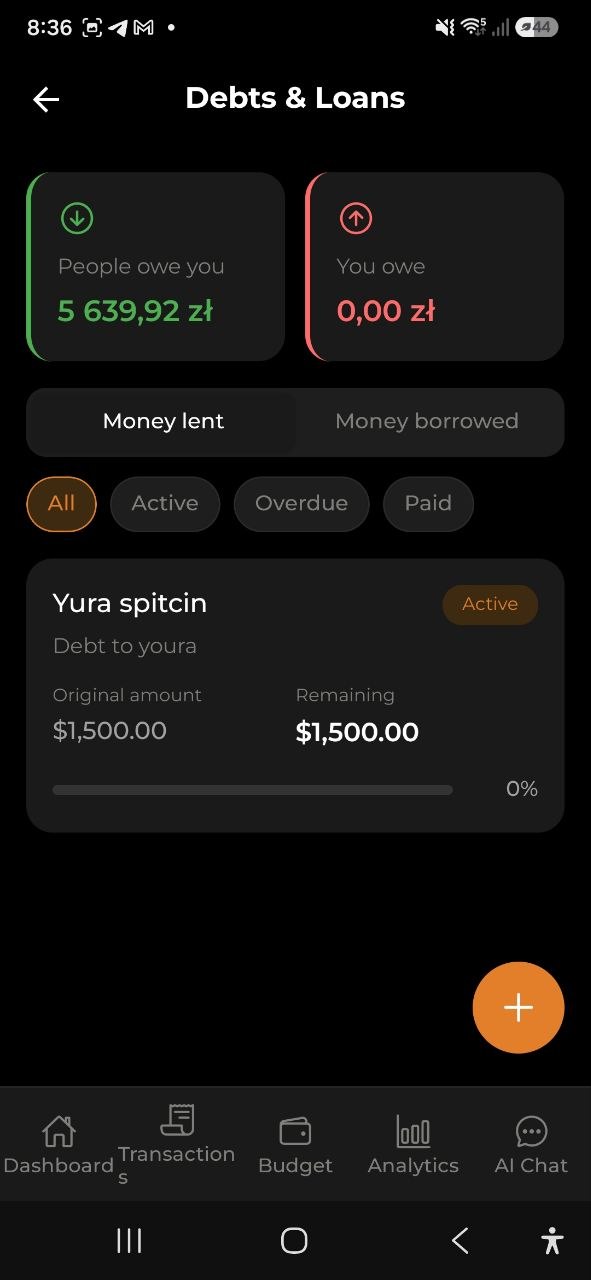
Debts & Loans Screen
Access the Debts & Loans screen from Settings > Debts & Loans, or by tapping the debt widget on the Dashboard.
Summary Cards
At the top of the screen, two summary cards show: - People owe you — total remaining amount others owe you (green) - You owe — total remaining amount you owe others (red)
Amounts are automatically converted to your base currency using current exchange rates.
Tabs
Switch between two views: - Money Lent — debts where you lent money to others - Money Borrowed — debts where you borrowed money from others
Filter Chips
Filter debts by status: - All — show all debts - Active — only debts with outstanding balance - Overdue — only debts past their due date - Paid — only fully repaid debts
Debt Card
Each debt shows: - Contact name — who the debt is with - Description — what the debt was for - Status badge — Active (blue), Overdue (red), or Paid (green) - Original amount — the initial debt amount in original currency - Remaining amount — how much is still owed - Progress bar — visual indicator of repayment progress (percentage) - Due date — when the debt is due (if set)
Tap a debt card to view the full expense or income details, where you can record repayments.
Push Reminders
When a debt has a due date, the app sends automatic push notifications to keep you on track:
- 3 days before the due date — an upcoming reminder: “Debt due in 3 days: John”
- The day after the due date — an overdue alert: “Debt overdue: John”
Notifications are sent to the person who recorded the debt (the debt owner), not the counterparty.
To enable or disable these reminders, go to Settings → Notifications & Integrations → Debt Reminders.
Dashboard Widget
The Debts & Loans widget is always visible on the Dashboard (when enabled in widget settings):
- When you have debts: shows “People owe you” and “You owe” totals, plus a + button to quickly navigate to the Debts & Loans screen
- When you have no debts: shows an empty state with an Add debt button to get started
Tap the widget to go directly to the Debts & Loans screen.
Multi-Currency Support
Debts can be in any supported currency. The summary totals on the Dashboard and Debts screen are automatically converted to your base currency using live exchange rates. Individual debt cards always show amounts in the original currency.
FAQ
-
Q: Can I lend money in one currency and receive repayment in another? A: Repayments are recorded in the same currency as the original debt to ensure accurate tracking.
-
Q: Does lending money affect my budget? A: Yes, lending is recorded as an expense and borrowing as income. They affect your wallet balance and budget tracking like any other transaction.
-
Q: Can I edit a debt after creating it? A: Yes, tap the debt to view its details, then use the Edit button. You can change the description, contact name, and due date.
-
Q: What happens when a debt is fully repaid? A: The status automatically changes to “Paid” and the progress bar shows 100%. The debt remains in your history for reference.
-
Q: How do I delete a debt? A: Open the debt details and tap Delete. Note that this also deletes the underlying expense or income entry.
See also: Expenses & Income | Wallet & Currency Exchange