Budgets
Set spending limits and track your progress in real time. Create budgets for specific categories or distribute your budget across multiple categories, with customizable periods and automatic alert thresholds.
Overview
Budgets help you control your spending by setting limits for specific time periods. The app tracks your expenses against these limits and notifies you when you’re approaching or exceeding your budget.
Budget List
The Budgets tab shows all your active budgets:
- Budget name and period (Daily, Weekly, Monthly, Yearly, Custom)
- Progress bar — visual indicator of spending vs. limit
- Amount spent out of total budget (e.g., “2 846 zl of 20 000 zl”)
- Status badge:
- On Track (green) — spending is within the limit
- Over Budget (red) — spending has exceeded the limit
- Remaining amount or overage
Note: If you don’t have any budgets yet, you’ll see a prompt: “Create a budget to start tracking your spending limits.”
Creating a Budget
Step-by-step
- Tap Create Budget on the Budgets tab (or the + button)
- Enter a Budget Name (e.g., “Monthly Groceries”)
- Select the Currency
- Choose a Budget Mode: - Overall — set a single total amount, optionally linked to one category - By Category — distribute the budget across multiple categories, each with its own limit
- Enter the Amount (Overall mode) or add categories with amounts (By Category mode)
- Choose a Period: - Daily — resets every day - Weekly — resets every week - Monthly — resets every month - Yearly — resets every year
- Set Alert At threshold (default: 80%) — you’ll get notified when spending reaches this percentage
- Tap Create Budget
By Category mode
In By Category mode, you can assign a spending limit to each expense category:
- Tap Add Category to pick a category from the list
- Enter the amount for each category
- The total budget equals the sum of all category amounts
- You can add as many categories as needed
Scanned Receipts and Category Budgets
When a scanned receipt is automatically split across categories — groceries, household items, a bottle deposit — each category’s share now counts toward that category’s budget, in proportion to the split. A budget on a category that only ever shows up inside a receipt split, like Alcohol or a deposit budget, finally tracks spending instead of always reading zero — and a Groceries budget no longer counts the household items or the deposit from the same receipt.
This applies to receipts you’ve already scanned, not just new ones — your budget totals, including Spending History, update automatically. There’s nothing to rescan.
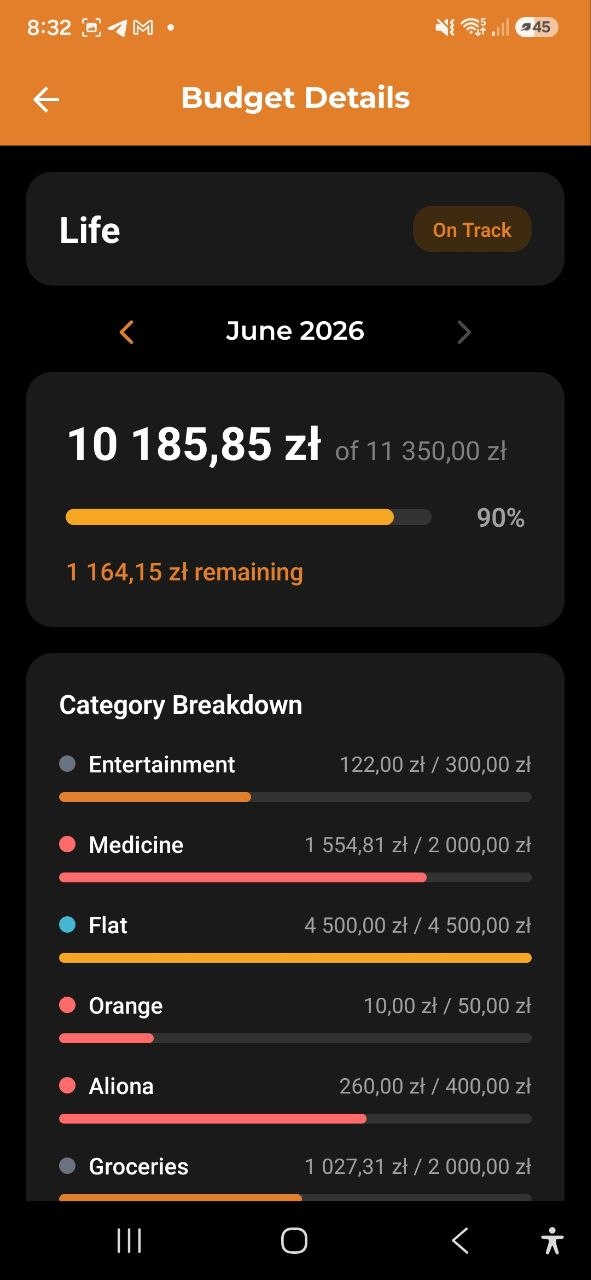
Budget Details
Tap any budget to see its full details:
- Progress visualization — bar showing spent vs. limit
- Status — On Track or Over Budget
- Category Breakdown — for multi-category budgets, see each category’s progress:
- Color dot + category name
- Spent / allocated amounts
- Per-category progress bar (green/yellow/red based on usage)
- Period — the budget’s time range
- Alert Threshold — the notification trigger point (e.g., 80%)
- Days Remaining — how many days left in the current period
- Projected Total — estimated total spending by period end based on current pace
- Active/Inactive — the current status of the budget
Actions:
- Edit (pencil icon) — modify name, amount, categories, period, or alert threshold
- Delete — remove the budget (with confirmation)
Spending History
The History card shows how you’ve performed against this budget over the last 6 periods. It’s available for all period types except Custom.
- Bar chart — each group shows two bars: your actual spend (colored) and the budget limit (gray) for that period.
- Green bar — spent within the limit
- Red bar — exceeded the limit
- Compliance summary — e.g., “Over budget 3 of 6 periods” or “Avg savings: $42”
- Average overage — if you went over in some periods, shows the average amount by which you exceeded the limit
Tip: Use the history card to spot recurring overspend patterns. If you see 3–4 red bars in a row, consider raising the limit or adjusting your habits for that category.
Financial Month (Custom Period Start)
By default, Monthly budgets run on the calendar month. If your income arrives mid-month, the account Owner can shift the start day instead — e.g. day 10 makes a monthly budget’s period run the 10th to the 9th of the next month. Set it under Account Settings → Financial Month (see Accounts). The change applies retroactively to past periods and history, without altering any expense or income data.
Editing a Budget
Tap the pencil icon on the budget detail screen to switch to edit mode:
- Change the budget name, currency, period, or alert threshold
- Switch between Overall and By Category modes
- In By Category mode: add, remove, or change amounts for categories
- Tap Save to apply changes, or Cancel to discard
Budget Alerts
The app automatically monitors your budgets and sends notifications:
- Threshold alert — when spending reaches your set alert percentage (e.g., 80%)
- Over budget alert — when spending exceeds 100%
- Progress bar color changes dynamically:
- Green — under 80% used
- Yellow/Orange — 80–100% used
- Red — over 100% used
Tip: The Monthly Budget card on the Dashboard shows your primary budget status at a glance.
FAQ
-
Q: Can I have multiple budgets at the same time? A: Yes! You can create as many budgets as you need — for different categories, periods, or overall spending.
-
Q: What’s the difference between Overall and By Category modes? A: Overall sets one total limit (optionally for a single category). By Category lets you set individual limits for each category — useful when you want to track groceries, transport, and entertainment separately within one budget.
-
Q: What happens when a budget period ends? A: The budget automatically resets for the new period. Your previous spending data is kept in Analytics.
-
Q: Does the budget track expenses in all currencies? A: Each budget is tied to one currency. Only expenses in that currency count toward the budget.