Voice Input & Receipt Scanning
Let AI do the work. Speak your expense naturally or photograph a receipt — the app extracts amount, description, merchant, and category automatically.
Voice Expense
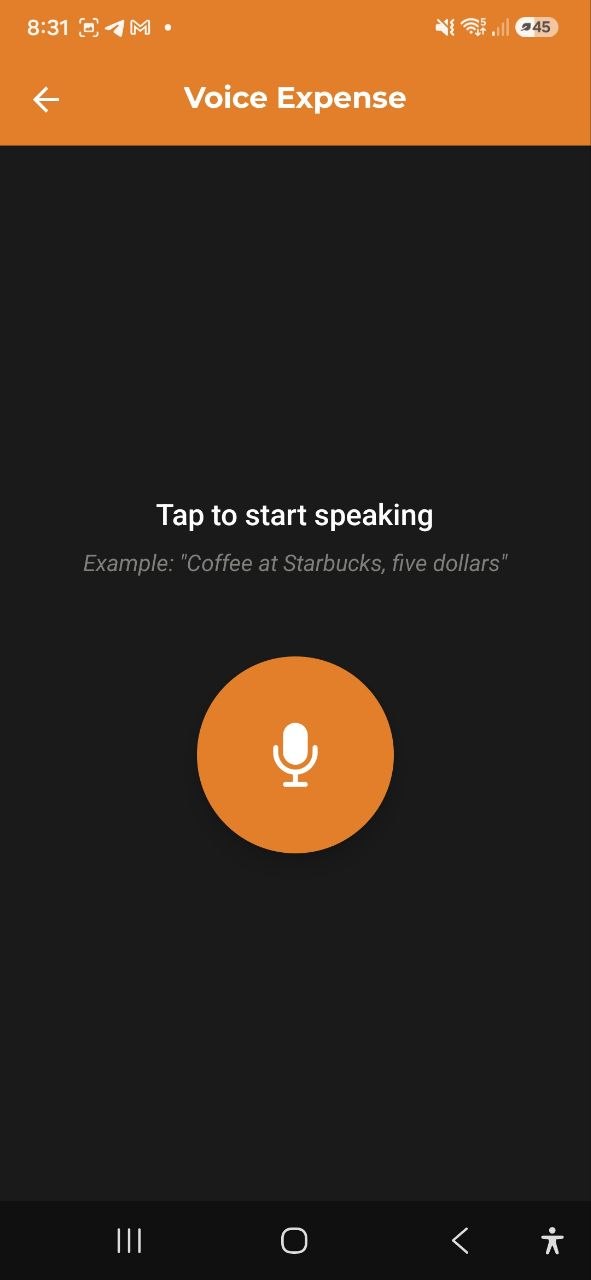
How It Works
- Tap Voice Input from the Dashboard quick actions, or tap + on the Transactions screen and select Voice Input
- You’ll see a large microphone icon with the text “Tap to start speaking”
- Tap the microphone button to start recording
- Speak naturally, for example: “Coffee at Starbucks, five dollars”
- Tap again to stop recording
- The app processes your speech and extracts expense details
Confirmation Screen
After processing, you’ll see a confirmation with the parsed data:
- Amount — extracted from your speech (editable)
- Description — what the expense was for (editable)
- Merchant — where you spent (editable)
- Category — automatically assigned (editable)
- Confidence indicator — High confidence or Medium confidence
Review the details, make any corrections, then: - Tap Save Expense to confirm and save - Tap Try Again to re-record
After saving, you can tap Add Another to record a new voice expense.
Tips for Best Results
- Speak clearly and include both the item/description and the amount
- Include the merchant name if relevant (e.g., “Lunch at McDonald’s, twelve euros”)
- Specify the currency if it’s different from your default
- Keep it simple — one expense per recording
Scan Receipt
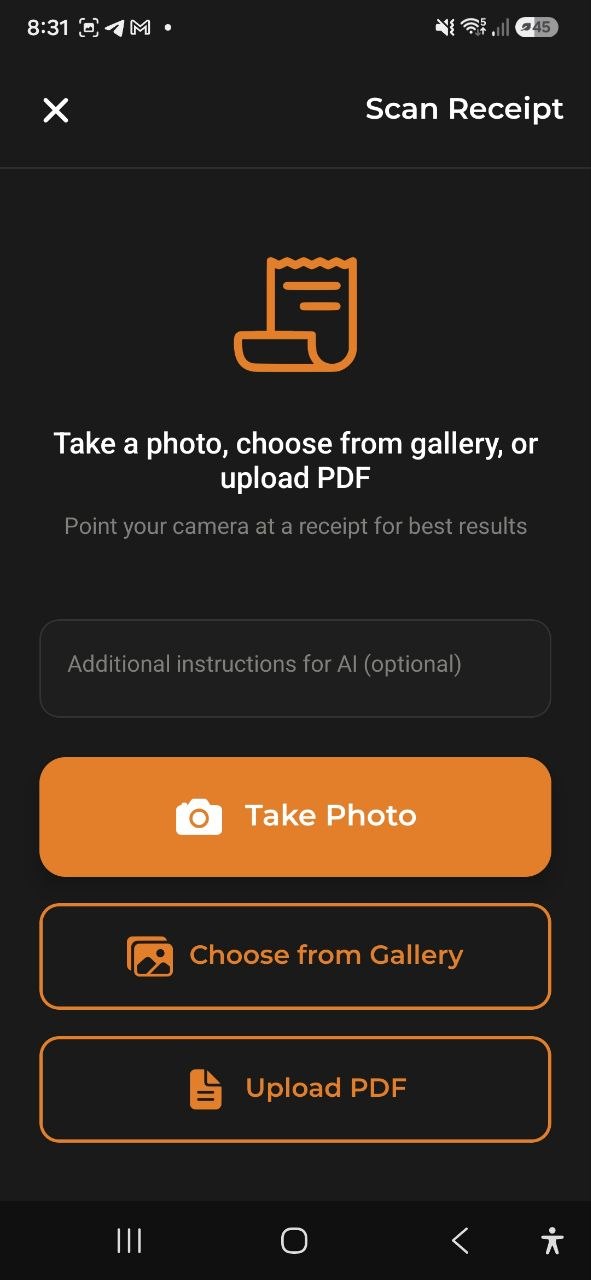
How It Works
- Tap Scan Receipt from the Dashboard quick actions, or tap + on the Transactions screen and select Scan Receipt
- You’ll see three options: - Take Photo — opens your camera to photograph the receipt - Choose from Gallery — select an existing photo - Upload PDF — pick a PDF file (digital invoices, scanned receipts up to 10 MB)
- Optionally, enter Additional instructions for AI (e.g., “Split equally between two people”, “Ignore the tip”)
- The app analyzes the receipt and extracts data
Confirmation Screen
After AI analysis, you’ll see:
- Total Amount — extracted from the receipt (editable)
- Description — generated summary (editable)
- Merchant — store/restaurant name (editable)
- Category — automatically assigned (editable)
- Date — from the receipt (editable)
- Items — individual line items with quantities and prices (if detected) — tap any item to edit it, delete it, or add one the scan missed (see Editing Items below)
- Discount — discount amount (if present on receipt)
- Confidence indicator — High or Medium
- Save receipt image toggle — keep the photo attached to the expense
Review and correct any details, then: - Tap Save Expense to confirm - Tap Scan Again to try a different photo
Tips for Best Results
- Photograph in good lighting — avoid shadows and glare
- Ensure the entire receipt is visible and flat
- Hold the camera steady to avoid blurring
- Use Additional instructions for AI for special handling (e.g., “This is in EUR”, “Ignore the first item”)
Editing Items
AI extraction isn’t always perfect — a price digit can get dropped, a discount can bleed into a unit price, or the scan can miss a line entirely. You don’t need to rescan or delete the whole expense to fix it:
- Tap any item in the list to edit its name, quantity, unit price, or total price. Tap Save to apply the correction.
- Tap the trash icon next to an item to remove it — useful for a duplicated or invented line.
- Tap + Add item at the bottom of the list to add a line the scan missed.
Every item is listed — there’s no cutoff, however many the receipt has. Any change you make updates the category split and totals immediately, so what you save always matches what’s on screen. The receipt’s overall total, discount, and deposit stay as scanned; only the individual line items are editable.
Category Splits
Grocery-store receipts often mix several kinds of items in one trip — food, household supplies, alcohol. When the app recognizes more than one kind of item on a receipt, it automatically splits the expense across the matching categories instead of putting it all in one.
- On the confirmation screen, a row of category chips appears above the item list, labelled Split by category (for example, “Groceries 180 · Household 35 · Alcohol 25”), showing how the total will be broken down.
- Tap Change categories to open a list of every item and adjust which category it belongs to. Your changes apply right away — and are remembered, so the same product is categorized correctly next time you scan it.
- If the items don’t add up closely enough to the receipt total, the app falls back to one category instead of guessing.
- Bottle and can deposits are recognised and shown as their own category, so you can see how much of your spending is packaging you can get back.
- This also counts toward your category budgets — a budget on a category that only ever shows up inside a receipt split, like Alcohol or a deposit budget, finally tracks correctly, and a Groceries budget no longer counts the household items or the deposit from the same receipt.
- Sometimes none of your existing categories fit a group of items. When that happens, the app suggests a brand-new category, shown as a chip marked with a + (for example, “+ Household chemicals 10”). Nothing is created yet — tap Change categories to reassign its items to one of your existing categories instead, or leave it as suggested. The new category is only actually created once you save the receipt.
Works the same way whether you scan through the app or through the Telegram, WhatsApp, or Slack bots.
Scanning a Stack of Receipts
Caught up on a week of paper receipts? After you save one, the confirmation prompt offers two choices instead of just closing the screen:
- Scan Another — jumps straight back to the camera without leaving the screen, so you can clear a whole stack back-to-back
- Done — finishes and returns you to where you started
While you’re scanning, a small counter shows how many receipts you’ve saved this session. Every 15 receipts, the app checks in with a friendly reminder that you can keep going or take a break — your progress is already saved either way. The counter resets once you leave the screen; it’s just there to give you a sense of progress during one sitting.
Already-Scanned Receipts
The app warns you before a receipt ends up in your expenses twice:
- The same file again — if you pick a photo or PDF that was already scanned and saved, you are asked before it is read, so no AI request is spent. Choose Open to see the saved expense, Scan anyway to read it again, or Cancel.
- The same receipt, new photo — after reading, if an expense with the same store, amount and date (±1 day) already exists, the confirmation screen shows a yellow notice with an Open button. You can still save: it may be a genuine second purchase.
- Already recorded by your bank — if the matching expense came from a bank notification or a bank statement import, the notice says so and offers Merge into one expense. With it ticked, saving keeps the receipt (its items, photo and category) and replaces the bank entry, so the purchase is counted once. The box starts unticked when only the amount and date matched — check before merging.
The Telegram, WhatsApp and Slack bots give the same warnings, with a Scan anyway button.
Sharing from Another App (Android)
Got a receipt as a screenshot, a banking-app confirmation or an e-receipt PDF? You don’t have to open the scanner:
- In any app (gallery, Gmail, your bank, a store app), tap Share
- Choose AI Budget
- The app opens straight on the filled-in confirmation screen — check it and tap Save
You can share images and PDFs, up to 10 files at a time (a PDF up to 10 MB). Several files become separate expenses, one after another — the title shows your progress (“Receipt 2 of 5”) and Next takes you to the following file. If a file can’t be read, choose Skip or Enter manually. Closing the screen asks before discarding the files still waiting. Each file counts as one receipt scan against your AI limit; if the limit runs out, the remaining files are left for later.
Sharing works on Android only. On iPhone and in the web app, use Scan Receipt instead.
Voice Income
Capture received payments by voice — same flow as Voice Expense, optimised for income.
How It Works
- Tap Voice Income from the Dashboard quick actions, or tap the microphone icon in the Add Income form footer
- Tap the (green) microphone button to start recording
- Speak naturally, for example: “Received 500 from client, consulting fee”
- Tap again to stop recording
- The app extracts the amount, description, and best-matching income category
Confirmation Screen
- Amount — extracted from your speech (editable)
- Description — what the payment was for (editable)
- Category — income category automatically assigned (editable)
- Currency — detected or defaulted to your base currency
Tap Save Income to confirm, or Try Again to re-record.
Tips for Best Results
- Mention the amount and a brief description
- Mention the currency if it differs from your default
Scan Invoice
Photograph or upload an invoice or payment document to capture income automatically.
How It Works
- Tap Scan Invoice from the Dashboard quick actions, or tap the document icon in the Add Income form footer
- Choose Take Photo, Choose from Gallery, or Upload PDF
- Optionally, enter additional instructions for the AI
- The app extracts the total amount, date, and category
Confirmation Screen
- Total Amount — extracted from the document
- Description — generated summary
- Category — income category automatically assigned
- Date — from the document
Review the details, tap ✓ to save or the pencil icon to open the full Add Income form with the data pre-filled.
Note: Invoice OCR extracts the total and date only. Line items from invoices are intentionally ignored to avoid double-counting on multi-line billing documents.
FAQ
-
Q: Which languages does voice input support? A: Voice input works best in the language your app is set to. It supports all 8 app languages.
-
Q: Can I scan receipts in any language? A: Yes, the AI can process receipts in most languages and will extract amounts and items regardless of the receipt language.
-
Q: What PDF files are supported? A: Both digital PDFs (e.g. Amazon or PayPal invoices) and scanned PDF receipts are supported. Maximum file size is 10 MB. Digital PDFs with selectable text are processed faster and more accurately. For best results with scanned PDFs, make sure the scan is clear and high-contrast.
-
Q: Why was the amount wrong after scanning? A: AI extraction isn’t always perfect. Always review the confirmation screen and correct any errors before saving. Blurry or damaged receipts may produce less accurate results. If a specific line item is wrong, tap it to edit it directly — see Editing Items above.
-
Q: Does voice/receipt scanning use my AI requests? A: Yes, each voice input or receipt scan uses one AI request from your monthly allowance.
-
Q: Why did one receipt end up split across several categories in my charts? A: When a receipt clearly mixes different kinds of items (for example, groceries and alcohol), the app automatically divides it across the matching categories in your spending charts — and in your category budgets, too. Tap Change categories on the receipt confirmation screen to adjust it — corrections are remembered for next time.
See also: Expenses & Income | AI Chat