Spending Story
Get an AI-generated narrative report of your finances. See achievements, alerts, and insights presented as an engaging visual story.
Overview
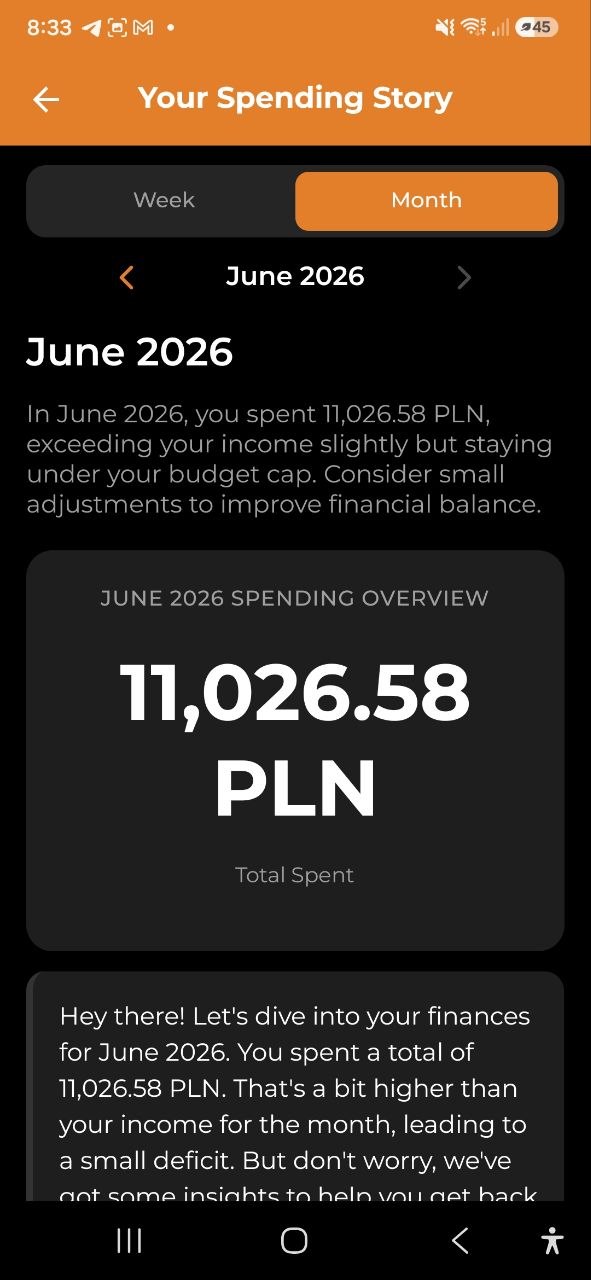
The Spending Story feature creates a personalized, narrative-style report of your financial activity. It highlights key events, achievements, and areas of concern in an easy-to-read card format.
How to Access
- From the Analytics tab, tap the View Your Spending Story banner
- The story generates automatically based on your selected period
Period Toggle
At the top of the Spending Story screen:
- Week — story about the current week’s finances
- Month — story about the current month’s finances
Tap to switch between views. The story content updates accordingly.
Story Blocks
The AI generates various types of insight blocks:
Overspending Alert (Warning)
- Yellow card with warning icon
- Appears when your spending exceeds your income
- Example: “Your spending exceeded your income by 8,346.74 PLN. It’s a reminder to review and adjust plans for the upcoming months.”
Under Budget Victory (Achievement)
- Golden card with trophy icon
- Appears when you stayed under a budget limit
- Example: “Congratulations! You stayed under your total life budget limit by 1,325.52 PLN. It’s an impressive feat given the unexpected expenses this month.”
Top Expense to Watch
- Blue card with lightbulb icon
- Highlights your highest spending category
- Example: “The ‘Transport’ category topped your expenses at 6,250 PLN. Consider potential savings in this area for next month.”
Additional Story Elements
- Category breakdowns with percentages
- Summary narratives describing your overall financial picture
- Comparison insights vs. previous periods
- Charts and visualizations embedded in the story
Currency
The story is told in your display currency — the one picked in the currency pill on the home screen. Expenses, income and budget figures recorded in other currencies are converted into it at today’s rate before the story is written, so the totals add up; the story notes when figures are converted and therefore approximate. A single large charge in another currency no longer decides the currency of the whole story. Changing your display currency regenerates the story in the new one.
Actions
- Regenerate — tap to request a freshly generated story with updated data
- Share Story — share your spending story with others
- Last Updated timestamp — shows when the story was last generated
Requirements
- Pro or Business subscription required — Free plan users see a prompt to upgrade
- Sufficient transaction data — the app needs enough expenses to generate meaningful insights. If you don’t have enough data, you’ll see: “Not enough data to generate a story yet.”
- Each story generation uses AI requests from your monthly allowance
FAQ
-
Q: How often should I check my Spending Story? A: The story is most useful at the end of each week or month. Tap Regenerate to get the latest analysis.
-
Q: Can I share my Spending Story? A: Yes, tap Share Story to share it via your device’s sharing options.