Home Screen Widgets
Add Android widgets to your home screen for instant access to your spending data — or to add expenses without even opening the app.
What Are Widgets?
Widgets are small interactive panels that live on your Android home screen. AI Budget Assistant offers four widgets:
| Widget | Size | What it shows |
|---|---|---|
| Budget – Today | Small | Today’s spending total + change vs yesterday |
| Budget – Week | Medium | Bar chart of the last 7 days |
| Budget – Overview | Large | Budget progress bars + top spending categories |
| Budget – Quick Add | Compact strip | Three tap-to-open buttons |
Android only. iOS does not support home screen widgets. All the same features are available inside the app.
How to Add a Widget
- Long press an empty area on your home screen
- Tap Widgets
- Scroll to find AI Budget Assistant
- Long press the widget you want and drag it to your home screen
- Release to place it
Repeat to add multiple widgets.
Budget – Today (Small)
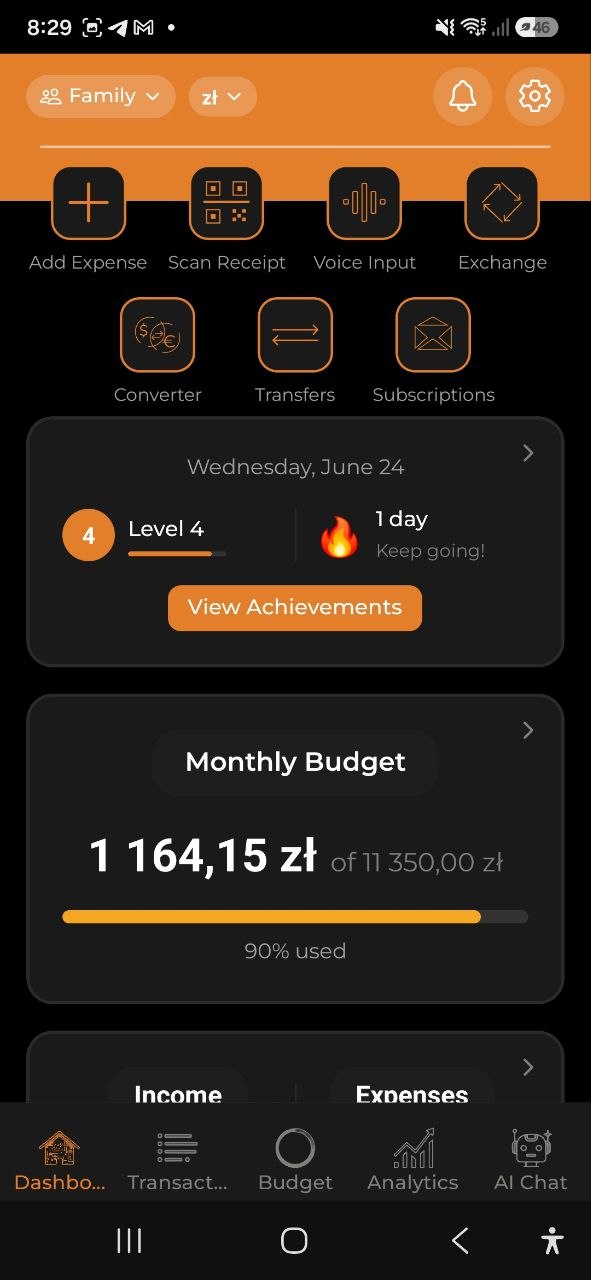
The smallest widget shows a quick daily snapshot:
- Today’s total spending amount
- Delta indicator — whether you spent more or less than yesterday (green = less, red = more)
Size: 110 × 40 dp (roughly 1 column × 1 row on most launchers)
Tap the widget to open the app.
Budget – Week (Medium)
The medium widget gives you a weekly overview at a glance:
- Bar chart of spending for each of the last 7 days
- Today’s total shown below the chart
Size: 250 × 110 dp (roughly 2 columns × 2 rows)
Tap the widget to open the app.
Budget – Overview (Large)
The large widget is your financial dashboard on the home screen:
- Budget progress bars for each active budget — shows how much of the budget period you’ve used
- Top spending categories with amounts for the current period
Size: 250 × 180 dp (roughly 2 columns × 4 rows)
Tap the widget to open the app.
Budget – Quick Add
The Quick Add widget lets you start adding an expense in one tap — no need to open the app first.
┌──────────────────────────────────────┐
│   🎤 Voice   │  📷 Scan  │  ✏️ Add  │
└──────────────────────────────────────┘
| Button | What happens |
|---|---|
| 🎤 Voice | Opens the app at the voice recording screen |
| 📷 Scan | Opens the app at the receipt scanner |
| ✏️ Add | Opens the app at the manual expense form |
Size: 250 × 60 dp (compact horizontal strip)
Tip: Quick Add does not display any data — it’s always up to date and uses no battery for background refresh.
Widget Data Refresh
| Widget | Refresh interval |
|---|---|
| Budget – Today | Every 30 minutes |
| Budget – Week | Every 30 minutes |
| Budget – Overview | Every 30 minutes |
| Budget – Quick Add | Static, never refreshes |
Data widgets pull from your local device storage, so they work even without an internet connection.
FAQ
Q: Why don’t widgets appear in the widget picker? A: Make sure the app is installed and you’ve logged in at least once. If the widgets don’t appear, try restarting your launcher or reinstalling the app.
Q: My widget shows “No data yet”. What should I do? A: Open the app and add at least one expense or check that sync has completed. The widget will refresh within 30 minutes, or you can trigger a sync manually in Settings → Sync Now.
Q: Are widgets available on iOS? A: No. Home screen widgets require Android. All the same features are available inside the app on iOS.
Q: Can I resize the widgets? A: Budget – Today and Budget – Quick Add have a fixed size. Budget – Week can be resized horizontally. Budget – Overview can be resized both horizontally and vertically.
See also: Voice Input & Receipt Scanning | Expenses & Income