Wallet & Currency Exchange
Track balances in multiple currencies and exchange between them with live exchange rates. The wallet automatically updates as you add expenses and income.
Overview
The Wallet feature lets you track your actual balances in each supported currency. As you add expenses and income, the wallet updates automatically to reflect your current financial position.
Wallet Balances
Access the Wallet from: - Dashboard — tap See All next to the Wallet Balances section - Dashboard — tap the Transfers quick action button for quick access to transfers - Settings — go to Wallet > Balances
For each currency, you’ll see:
| Field | Description |
|---|---|
| Current Balance | Your real-time balance in this currency |
| Initial Balance | The starting balance you set |
| Total Income | Sum of all income in this currency |
| Total Spent | Sum of all expenses in this currency |
| Exchanged In | Amount received from currency exchanges |
| Exchanged Out | Amount spent on currency exchanges |
| Transferred In | Amount received from other accounts |
| Transferred Out | Amount sent to other accounts |
The formula: Current Balance = Initial Balance + Total Income - Total Spent + Exchanged In - Exchanged Out + Transferred In - Transferred Out
A currency appears in the wallet by itself as soon as you record money in it — an expense, income, exchange or transfer. Until you set an initial balance for it, that balance is 0, so the card shows exactly what your transactions add up to. If you remove a currency from the wallet it stays hidden even if you keep recording transactions in it — set a balance for it again to bring the card back.
Total Balance
If you hold balances in multiple currencies, the wallet displays a Total Balance card at the top. This card converts all your currency balances into your chosen settings currency (configured in Settings > Currency) using the latest exchange rates, giving you a single combined view of your finances.
You can switch the display currency right here: tap a currency chip above the total to instantly recalculate the total and the Balance History chart in that currency. This is a view-only switch for the Wallet screen — it does not change your app-wide currency setting and resets to your default when you leave the screen.
Balance History
At the top of the Wallet screen, the Balance History card shows how your total balance changed each month as a bar chart:
- Green bars mean your balance grew that month; red bars mean it shrank.
- Tap any bar to see the exact change for that month.
- Use the 6M / 12M toggle to switch between the last 6 or 12 months.
- Amounts follow the currency you pick in the currency chips, converted at the latest exchange rates.
Setting Initial Balance
Set your starting balance for each currency:
- Go to Settings > Wallet > Set Balance
- Select the Currency (USD, EUR, PLN, GBP, UAH, RUB, or BYN)
- Enter the Amount — your current real-world balance in that currency
- Tap Save
You’ll see a confirmation: “Balance set successfully.”
Tip: Set your initial balances when you first start using the app, so the wallet accurately reflects your finances from day one.
Currency Exchange
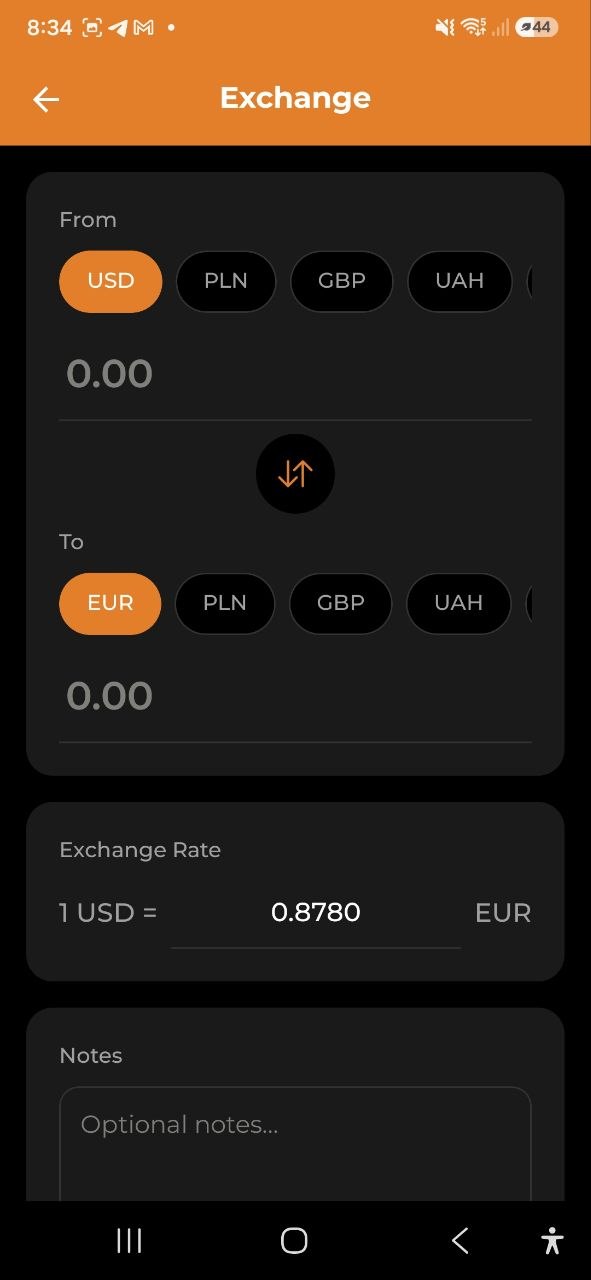
Exchange money between your currency wallets:
Step-by-step
- Tap Exchange from the Dashboard quick actions, or go to Settings > Wallet
- Select the From currency (e.g., USD) — tap a currency chip to select
- Select the To currency (e.g., EUR) — tap a currency chip to select
- Enter the amount in either the “From” or “To” field — the other auto-calculates
- The Exchange Rate is fetched automatically (e.g., “1 USD = 0.8407 EUR”)
- You can tap the swap button (center arrows) to reverse the currencies
- Optionally edit the exchange rate manually if you got a different rate
- Add optional Notes (e.g., “Airport exchange” or “Bank transfer”)
- Tap Exchange to complete
Features
- Live exchange rates — automatically fetched and displayed
- Swap button — quickly reverse From and To currencies
- Manual rate override — edit the rate if your actual rate differs
- Notes field — add context to the exchange
- Recent Exchanges — view your exchange history
Rate alerts
You don’t have to keep checking the rate yourself. On the Exchange screen, the Rate alerts card sets a target for the pair you have selected and notifies you when the live rate reaches it.
- Select the From and To currencies you care about
- Tap the + on the Rate alerts card
- Enter your target — the field reads
1 <From> = ___ <To> - Choose above or below. The app preselects whichever matches the number you typed (above if your target is higher than the current rate, below if it is lower); tap the other chip to override it
- Tap Add alert
The rate is checked on our servers once an hour, so it works with the app closed. When your target is reached you get a notification — “1 EUR is now 4.3512 PLN. Tap to exchange.” — and tapping it opens the Exchange screen with that pair already selected.
Each alert fires once and then stops, so a rate hovering around your target can’t notify you over and over. Add a new alert if you want to keep watching that pair.
The card shows the alerts for the pair currently selected, so switching currencies switches the list — tap Show all on it, or Rate alerts on the Wallet screen, for the full list.
That screen is where all your alerts live: the ones still waiting, and the ones that have already fired with the rate and date they fired at. Since an alert only fires once, that history is the only record in the app that it did — the notification itself can be swiped away. You can create an alert for any pair from there without touching the exchange form, delete any of them with the bin icon, and keep up to 20 waiting at a time.
Rate alerts are personal: they follow you across all your accounts, nobody else sees them, and a viewer can set them like anyone else. There is no separate switch in notification settings — deleting the alert is how you turn it off.
Recent Exchanges
Below the exchange form, you’ll find the 5 most recent currency exchanges with: - Currencies exchanged (From → To) - Amounts - Exchange rate used - Date - Notes (if added)
Tap Show all to open the full Exchange History screen.
Exchange History
The Exchange History screen displays a complete list of all your currency exchanges. Access it by tapping Show all in the Recent Exchanges section.
Available filters: - Currency — filter by a specific currency pair - Period — choose from All time, This month, Last 3 months, or This year
Editing or Deleting an Exchange
Tap any exchange in the history to open its detail screen. From there you can: - Tap the pencil icon to edit the amounts, exchange rate, or notes — then Save - Tap the trash icon to delete the exchange (a confirmation prompt appears)
Wallet balances recalculate automatically after edits or deletions.
Account Transfers
Account transfers let you move money between different accounts — for example, from your Business account to your Personal account. This is different from a currency exchange, which converts between currencies within the same account.
Step-by-step
- Go to Settings > Wallet > Transfer
- Select the From Account (the source account) — each account chip shows its current balance
- Select the To Account (the destination account)
- Choose the Currency
- Enter the Amount to transfer. Available: below the field shows the source account’s balance in the currency you picked — tap Max to fill in all of it
- If the accounts use different currencies, an Exchange Rate field appears — adjust it if your actual rate differs
- Pick the Date — it defaults to today, so tap it to record a transfer you made earlier
- Add optional Notes (e.g., “Monthly savings” or “Reimbursement”)
- Tap Transfer to complete
If the amount is larger than the balance the app knows about, you’ll see a warning — but the transfer is still saved. It is never blocked, because you may be entering a transfer after the fact, or the account’s initial balance may never have been set.
A dash (—) instead of a balance means the app has no figure for that account yet. Balances of accounts other than the one you’re currently working in come from the server, so they can be missing the first time you open the form offline.
Frequent Transfers
If you have transferred money before, a Frequent row appears at the top of the form with your most-used routes (for example, Personal → Savings 2000 PLN). Tap one and the form fills in — accounts, currencies and the amount from the last time you used that route. Change anything you like before saving.
Routes involving an account you no longer have access to are not offered.
Recent Transfers
Below the transfer form, you’ll find the 5 most recent account transfers with: - Source and destination accounts (From → To) - Amount and currency - Exchange rate (if currencies differ) - Date - Notes (if added)
Tap Show all to open the full Transfer History screen.
Transfer History
The Transfer History screen displays a complete list of all your account transfers. Access it by tapping Show all in the Recent Transfers section.
Available filters: - Account — filter by a specific source or destination account - Period — choose from All time, This month, Last 3 months, or This year
Editing a Transfer
Open a transfer from Recent Transfers or the Transfer History screen and tap Edit. You can change: - Both accounts — the source and the destination - The amounts and the exchange rate - The date - Notes and the Count as income option
Changing an account also switches that side of the transfer to the account’s own currency. If Count as income is on, the matching income record moves to the new destination account as well.
You can move either side to any other account you belong to — including a change that leaves the account you’re currently working in out of the transfer. That is exactly how you correct a transfer that landed on the wrong account: it then appears in the history of the two accounts it now belongs to, and disappears from the one it no longer touches.
Recording, editing and deleting transfers works offline: the change stays on your device and is pushed the next time the Wallet screen opens with a connection. If the server refuses a change — for example because you no longer have access to one of the accounts you picked — the app tells you and the transfer is left exactly as it was.
In a shared account, every member sees the transfers that touch it, whoever recorded them; the account’s balance always counted them anyway. Any member who could have made the transfer — that is, who belongs to both accounts and isn’t a viewer on the paying side — can also correct or delete it.
Supported Currencies
| Code | Currency |
|---|---|
| USD | US Dollar |
| EUR | Euro |
| PLN | Polish Zloty |
| GBP | British Pound |
| UAH | Ukrainian Hryvnia |
| RUB | Russian Ruble |
| BYN | Belarusian Ruble |
FAQ
-
Q: Where do exchange rates come from? A: Exchange rates are fetched from an online service and updated regularly. They represent approximate market rates.
-
Q: Can I exchange currency if I don’t have enough balance? A: The app will warn you about insufficient balance, but you can still record the exchange to keep your records accurate.
-
Q: Does a currency exchange count as an expense? A: No. Currency exchanges are separate from expenses — they move money between currency wallets without affecting your expense totals.
-
Q: What’s the difference between a transfer and an exchange? A: An exchange converts between currencies within the same account. A transfer moves money between different accounts (e.g., Business to Personal).
-
Q: Does a transfer affect my wallet balance? A: Yes. The source account’s wallet decreases and the destination account’s wallet increases by the transferred amounts.